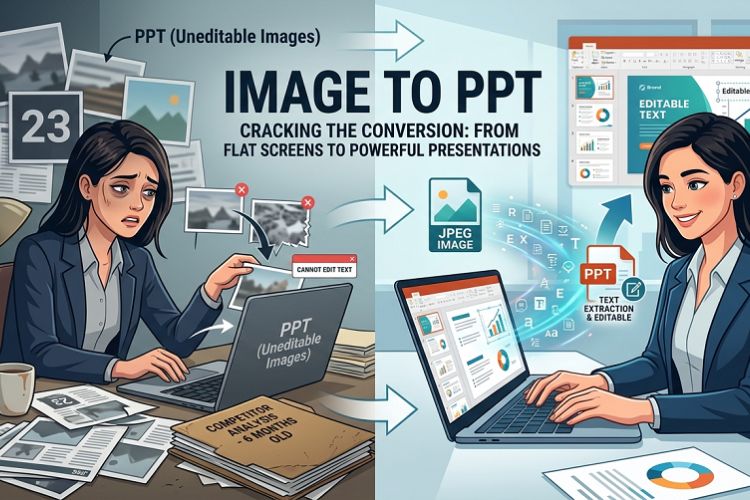
Three weeks into a new job, I was handed a folder of JPEG screenshots from a competitor analysis someone had done six months earlier. The ask: turn it into a presentation for the exec team by Thursday. No source files. No editable documents. Just 23 flat images.
I spent the first hour trying to do it the wrong way — inserting each image onto a slide, resizing, hoping nobody would notice the text was uneditable. They noticed. “Can you just update the font to match our brand?” No. I cannot. Because none of this is actually text.
That experience is what pushed me to figure out image-to-PPT conversion properly. Here is everything I learned.
The Difference Between Placing an Image and Converting One
This trips up a lot of people, so let’s be direct about it.
Inserting a PNG onto a PowerPoint slide takes five seconds. Right-click the slide, Insert Picture, done. The image sits there, it looks right, and nobody notices the problem until someone tries to edit a word, resize a text block, or apply the company font across the deck. Then everything breaks.
Actual conversion is different. The image gets analyzed — its text regions identified, its layout structure interpreted, its content reconstructed as real PowerPoint objects. Text boxes. Bullet points. Headings with actual font attributes. Elements you can click into, retype, reformat, and reuse across other slides.
One approach gives you a slide that looks editable. The other gives you a slide that is editable. When you are building something that will go in front of an audience or get handed to a colleague for updates, that distinction is the whole ballgame.
Method 1: OCR-Based Online Converter (Fastest for Text-Heavy Images)
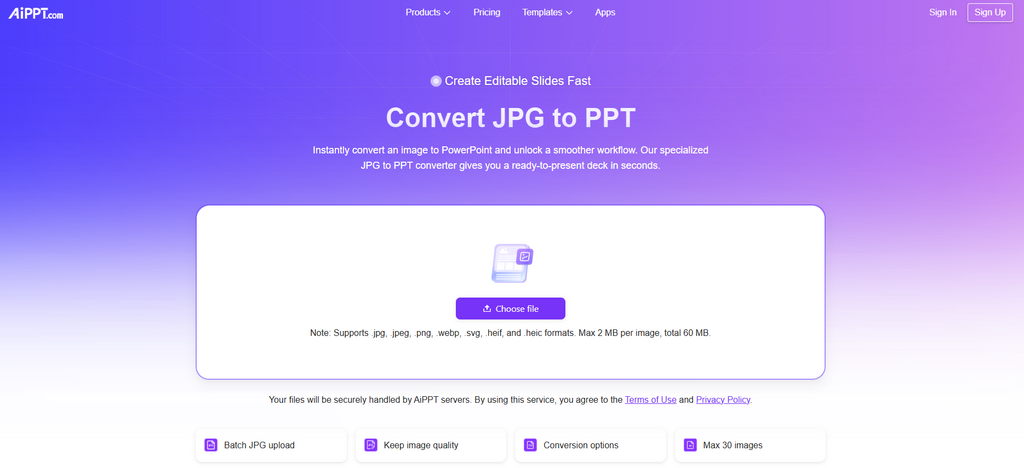
For screenshots of documents, slides, or typed content, an OCR-based converter is the right starting point. AIPPT’s image to ppt tool processes JPG and PNG files through a layout analysis engine that reconstructs text, structure, and visual hierarchy as actual slide elements — not embedded graphics.
The workflow takes about 45 seconds for a single image on a normal connection:
Go to www.aippt.com and open the converter. Upload your file — drag and drop works, or browse to it directly. The tool runs its analysis, which takes 20 to 30 seconds depending on image complexity. Download the .pptx output.
Open the file in PowerPoint. Click on what used to be a heading in your screenshot. It is now a text box. The words are selectable. You can change the font in three clicks, update the copy, copy the text into another slide. That is the output you were looking for.
One honest caveat: OCR accuracy is not 100 percent on every input. Unusual fonts, low-contrast text, and decorative typefaces create conversion errors that need manual correction. Always spend a few minutes reviewing output before using it in something you are presenting. On a clean, high-contrast screenshot, conversion accuracy is typically very high. On a blurry photograph of a whiteboard taken under bad fluorescent lighting — less so.
What Makes a Source Image Convert Well (and What Does Not)
Not every image is equally convertible. This matters more than people expect, and getting it right before you upload saves cleanup time afterward.
Screenshots from digital sources — a browser window, a PDF, another presentation, a Google Doc — convert cleanly because the original text was machine-generated and the image resolution is tied directly to your screen’s pixel density. A Retina screenshot at 2x resolution has enough fidelity that OCR accuracy is very high.
Photographs of printed documents convert reasonably well if the shot is straight-on, the lighting is even, and the resolution is high. A photo taken at a slight angle with shadows across half the page is going to produce a messy output that needs significant cleanup.
Handwritten content is the hardest case. Printed handwriting from someone with clear penmanship converts better than you might expect. Cursive, scrawled notes, or mixed handwriting-plus-typed content tends to require manual transcription regardless of what tool you use. In those cases, use the conversion as a structural starting point and retype the text directly.
Charts and data visualizations are a special category. An OCR tool will extract the axis labels, the legend text, and any annotations in the image — but the chart itself becomes an embedded picture, not a manipulable PowerPoint chart with underlying data. If you need the chart to be editable at the data level, you will need to recreate it natively in PowerPoint using the original numbers. Use the image as your visual reference for layout and design, not as a source for data extraction.
Method 2: The Reference Layer Technique (For Simple Layouts)
When I am working with a simple diagram — a basic org chart, a three-box process flow, a short bullet list — I sometimes skip the OCR converter and use PowerPoint’s built-in tools to reconstruct manually. It sounds slower but for simple images it often takes less time than cleaning up an imperfect conversion output.
Insert the image onto a blank slide. Select it, go to Picture Format, and dial the transparency up to about 60 percent. The image fades into the background but remains visible enough to trace.
Now build over it. Add text boxes where the text is. Draw shapes where the shapes are. Use PowerPoint’s alignment guides to match positioning. When the reconstruction looks right, select the background image and delete it.
What remains is a slide built entirely from native PowerPoint objects — fully editable, fully searchable, properly formatted. For a layout with four text blocks and two shapes, this takes maybe eight minutes. For a 40-word screenshot with complex nested bullet points, an OCR converter wins on speed by a large margin.
Converting Multiple Images Into One Deck
The single-image scenario is manageable. The harder version is what I dealt with that first week: a folder of 23 images that needed to become a coherent, consistently formatted presentation.
A few things make this faster.
If you are using an OCR-based converter that accepts batch uploads, process all the images at once rather than one at a time. Some tools output a multi-slide PPTX directly — one slide per image — rather than requiring you to merge individual files afterward. That single step saves ten to fifteen minutes on a large batch.
For mixed batches — some images with heavy text content, some purely visual — convert the text-heavy ones through the OCR tool and insert the visual-only images directly. A product photograph, an illustration, or a decorative graphic does not need conversion; it just needs to be placed. Reserve the OCR process for images where the text inside actually needs to be editable.
After batch conversion, apply your slide master and theme in one pass rather than slide by slide. Select all slides in the panel, apply your template, and let PowerPoint push the formatting universally. This is the part that turns a rough conversion output into something that looks like it was built intentionally.
Google Drive’s Hidden OCR Feature (Free but Limited)
Worth mentioning for people on tight budgets: Google Drive has a built-in OCR function that most users never discover.
Upload a JPG or PNG to Google Drive. Right-click the file. Select Open with > Google Docs. Google processes the image and attempts to extract all the text into a Docs document, with the original image placed at the top.
The output is text only. No layout. No formatting structure. No slide hierarchy. You get a wall of extracted words that you would need to manually restructure into slides in Google Slides.
For a simple screenshot with a few lines of text, this works as a free fallback. For anything with structural complexity — columns, nested bullets, multiple content sections — the output requires so much manual cleanup that it barely saves time compared to retyping from scratch. It is a useful tool to know about. It is not a replacement for a proper image-to-PPT converter when you are working with structured slide content.
File Size: The Problem Nobody Mentions Until the Presentation Will Not Send
Here is something that caught me off guard the first few times I did batch image conversions.
A presentation built from 20 high-resolution images — even after conversion — can easily hit 40 to 60 MB. That is too large to email, too slow to load on a weak connection, and sometimes too big to upload to the platforms where you need to share it.
After converting and reviewing, run PowerPoint’s built-in compression on all images in the file. Go to Picture Format with any image selected, click Compress Pictures, choose the appropriate resolution for your use case — 150 ppi for on-screen presentations, 220 ppi if you are printing — and apply to all images in the document. A 55MB file often comes down to 8 to 12MB after compression with no visible quality loss on a standard display.
Do this before you share. Not after someone emails you asking why the attachment bounced.
When Conversion Is Step One, Not the Whole Job
Sometimes converting the image accurately is not the real goal. The real goal is a finished, designed presentation that looks like a professional made it — one where the converted content fits inside a proper visual framework with consistent typography, a slide master that enforces brand standards, and layout choices that make the information easy to follow.
Raw conversion output — even clean, accurate conversion — rarely looks polished. It looks like content extracted from an image and placed on a white slide with default formatting. Which is exactly what it is.
For situations where the converted content needs to become a presentation worth showing, AIPPT’s broader platform gives you the jpg to ppt converter as the extraction layer and an AI presentation builder as the design layer. Upload your images, get the text extracted and structured, then apply a designed template that handles layout, typography, and visual hierarchy automatically.
That combination — accurate extraction plus intentional design — is what closes the gap between a technically converted file and a presentation that actually communicates something.
Before You Start: A Quick Pre-Conversion Checklist
Crop the image tightly before uploading. Extra whitespace and irrelevant background elements add noise that can confuse OCR engines and produce misplaced text boxes in the output.
Check resolution. If your screenshot or scan is below 150 ppi, the conversion accuracy will drop noticeably. Re-export or re-screenshot at higher resolution if possible — most modern screens capture at 2x or higher when you use native screenshot tools.
Know what you need the output to do. If the text needs to be editable, use a converter. If the image is purely decorative, insert it directly. Matching the method to the actual requirement saves time and avoids unnecessary cleanup.
Review before presenting. Every single time. Five minutes of review catches the OCR errors that would otherwise surface at the worst possible moment — when you are live in front of the room and someone asks you to pull up slide 11.
Note: The content on this article is for informational purposes only and does not constitute professional advice. We are not responsible for any actions taken based on the information provided here.