

Last month I had 40 minutes before a client call and zero slides prepared. Not a rough draft. Not an outline. Nothing. The brief had changed the night before and I had spent the morning rewriting the proposal instead of touching PowerPoint.
What I did in that 40 minutes — and what actually showed up on screen during that call — is what this article is about.
The Real Reason Presentations Take So Long
It is not the writing. Most people can write their talking points in 20 minutes if someone puts a gun to their head. The time disappears in the decisions nobody talks about.
Which layout do I use for this slide? Does this point need its own slide or can it share with the next one? Why does this text box keep jumping when I resize it? Why does slide 7 look completely different from slide 3 even though I used the same template?
Those micro-decisions stack up fast. A 15-slide deck can involve 150 small choices before you have something presentable. Multiply that across a team that builds decks twice a week and you start to understand why “just put together some slides” is never actually quick.
AI does not speed up your typing. It eliminates most of those decisions entirely.
What Happened in Those 40 Minutes
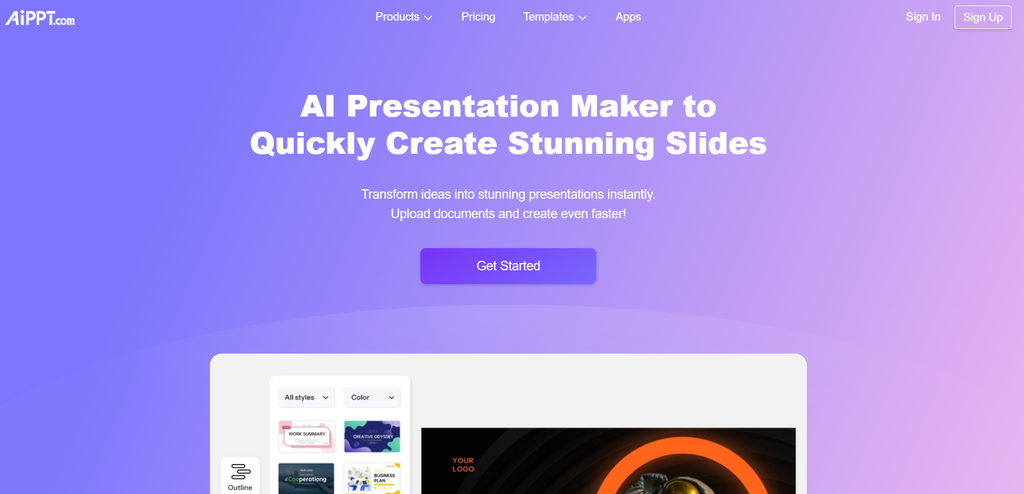
I typed a two-sentence description of what the presentation needed to cover into AiPPT. Roughly: “Q2 performance overview for a SaaS client, covering pipeline health, churn reduction wins, and priorities for Q3.” Hit generate.
Fifty-three seconds later I had 14 slides. Structured. Titled. With actual content in the body — not placeholder text that says “click to add content,” but real sentences organized into a logical flow.
I spent the next 12 minutes doing three things: deleting two slides that covered redundant ground, replacing the AI’s generic metrics with our actual numbers, and swapping the color theme to something closer to the client’s brand palette. That last part took maybe 90 seconds through the Design tab.
The remaining 26 minutes I spent preparing what to say. Not building slides. Actually preparing.
That is the real value of an AI presentation tool. Not that it makes a perfect deck. It makes a solid draft fast enough that the time you recover goes back into the part of presenting that actually requires a human.
How the Process Works — Specifically
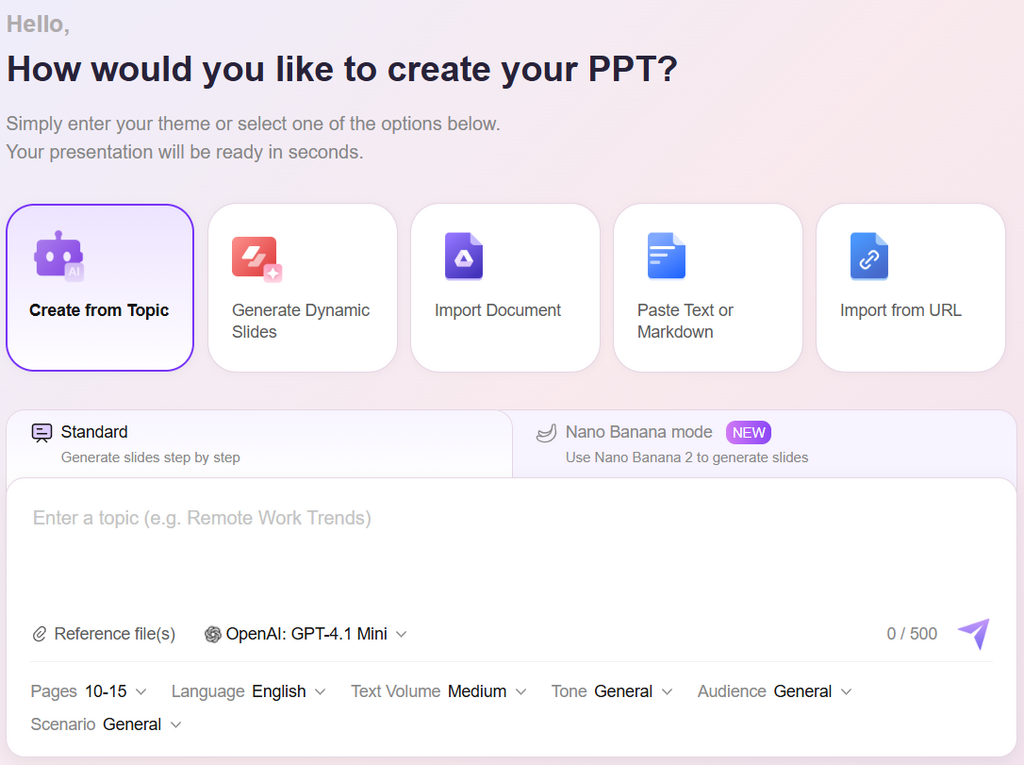
There are three ways to start, and which one you use depends on what you already have.
You have a topic but no content yet. Type a clear, specific description of the presentation’s purpose and audience. “Investor pitch for a seed-stage fintech startup focused on expense automation for SMBs” produces a better output than “startup pitch.” Specificity drives relevance. The AI generates both the structure and the slide content from your description.
You have an outline or rough notes. Paste them in. The AI reads the structure you have already sketched and turns it into slides, respecting your section breaks and key points while filling in supporting content and applying a visual framework. This is the fastest path to a draft that does not need much structural editing.
You have a document. A Word file, a PDF report, a research brief. Upload it directly. The AI reads the document, identifies the main arguments and supporting evidence, and distributes that content across an appropriate slide count. A 12-page brief typically becomes an 18 to 22 slide deck in under 90 seconds.
AIPPT handles all three entry points. It functions as an ai powerpoint generator that takes whatever material you already have — or just a clear topic — and produces a .pptx file you can open immediately in PowerPoint or edit directly in the browser.
The Four-Minute Breakdown (Timed)
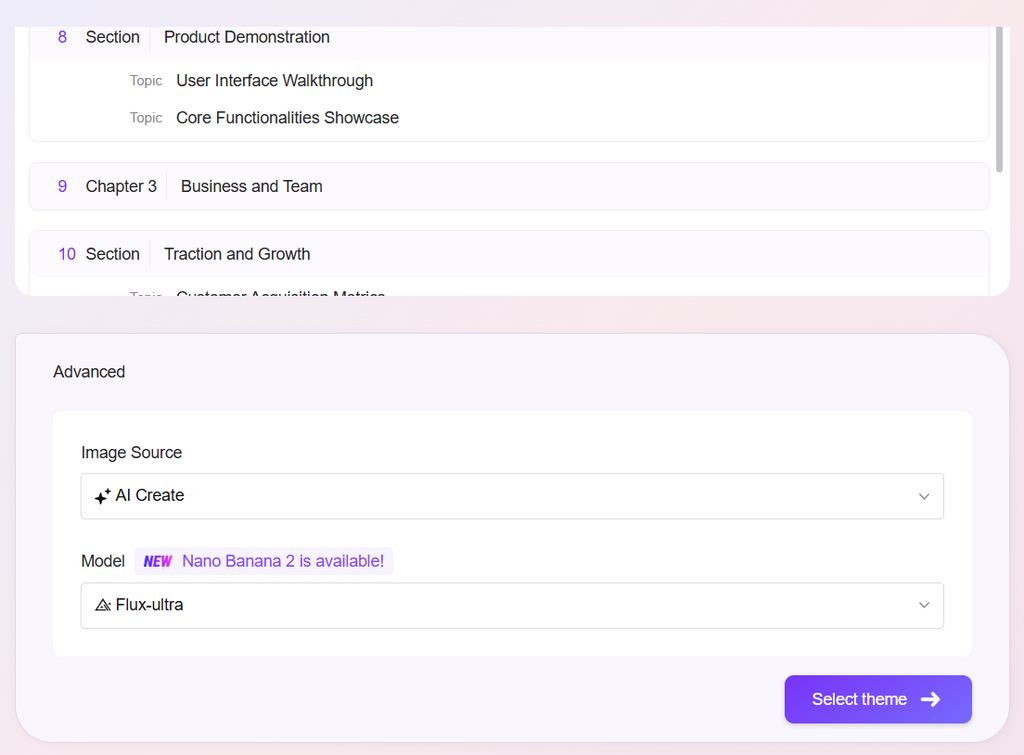
Here is what actually happens when the clock is running:
0:00 to 0:55 — Generation. Type your topic or paste your content. Hit generate. For a 15-slide deck on a standard business topic, output arrives in 45 to 60 seconds. More complex inputs with uploaded documents take 60 to 90 seconds.
0:55 to 2:30 — Structure review. Read through the deck from slide 1 to the end. You are not editing yet — just checking whether the narrative makes sense, whether any slides obviously cover the same ground, and whether anything critical is missing. Delete what is redundant. Flag gaps with a note in the speaker notes field.
2:30 to 3:45 — Content replacement. Swap out generic AI content for your actual specifics. Your real numbers, your actual company name, the specific outcomes relevant to your audience. On a 15-slide deck this takes about 75 seconds if your specifics are already written somewhere you can copy from.
3:45 to 4:30 — Visual pass. Change the color theme if needed. Apply your brand font pair through the slide master — View > Slide Master > Fonts — so it updates globally rather than slide by slide. Insert your logo on the master slide so it appears everywhere automatically.
That is it. A presentable draft in under five minutes. Not boardroom-ready. Not final. But a coherent, structured deck that a real person could walk through with a real audience.
What “Under 5 Minutes” Actually Means in Practice
Let’s be precise about this, because overclaiming is how people end up disappointed.
The five-minute mark gets you a working draft. The content is plausible and well-organized. The design is coherent. The slide count is appropriate for the topic. You could technically present it.
For a low-stakes internal meeting — a team update, a project check-in, a quick briefing — that draft is often close enough to use with minor edits. Maybe another five minutes of cleanup.
For anything external — a client presentation, a board update, a conference session — add another 15 to 20 minutes. That time goes into making the content specifically accurate rather than generally correct, and making the visual identity match your brand standards rather than the AI’s default theme choice.
The total time for a presentation you would be genuinely confident presenting externally is 20 to 25 minutes. Compare that to the two-and-a-half hours the same deck would take built from a blank slide. That is the actual value proposition.
Where AI Gets It Wrong (So You Can Catch It Fast)
Knowing the failure modes saves the cleanup time that makes people give up on AI tools.
Vague bullet points on specific topics. If your topic is technical or industry-specific, AI-generated body text sometimes defaults to general statements that sound right but say nothing precise. “The platform delivers measurable ROI across key performance indicators” is the kind of sentence that needs to be replaced with an actual number or a specific claim.
Slide count bloat. AI tools tend to generate more slides than necessary on broad topics. A “comprehensive overview of digital marketing strategy” might come back as 26 slides when 14 would serve better. Edit down aggressively. If two slides are making the same point at different levels of abstraction, pick one and delete the other.
Mismatched tone. An AI that generated a solid deck for a corporate finance audience may use the same register for a startup pitch, which needs to feel different. Check the opening slides especially — they set the tone for everything that follows, and a formal corporate opener on a startup pitch is a subtle credibility problem.
Data placeholders that look like real data. Some AI tools generate realistic-looking fake statistics. “47% of enterprises report improved efficiency” sounds specific but may not be a real number. Before any external presentation, fact-check every statistic in the deck. Every single one.
Comparing How Different Tools Approach This
Not every AI presentation tool works the same way, and the differences matter depending on what you need.
AIPPT prioritizes speed and output quality in PowerPoint format. The output is a proper .pptx file with real slide structure — master slides, layout hierarchy, editable text boxes — rather than a web-based format that requires export and cleanup. For users who need to work in PowerPoint specifically, or who need to hand the file to someone else to edit, this matters.
Gamma generates attractive, content-forward presentations in a web-based format. The design is clean and the output quality is high, but export to PowerPoint requires a paid plan and the conversion sometimes loses formatting fidelity. Best for decks that will be presented directly from the web.
Beautiful.ai uses smart templates that auto-adjust as you add content. Less automated than prompt-to-deck generation, but strong for users who want more design control while still benefiting from AI layout logic. The learning curve is slightly steeper.
Tome leans toward visual storytelling and editorial presentation styles. Strong for thought leadership content, weaker for data-heavy business presentations that need charts and tables.
Microsoft Copilot in PowerPoint is the obvious choice for users already inside the Microsoft 365 ecosystem. The integration is seamless, but it requires a Copilot license on top of the existing Microsoft 365 subscription, which adds cost.
The Presentations AI Cannot Replace
Some decks should not be built primarily by AI. Not because the technology is insufficient, but because the work of building them is part of the thinking process.
A strategy presentation where you are still working out what you actually believe. A keynote where your personal perspective and voice need to come through in every sentence. A pitch where the narrative arc reflects months of customer discovery that only you understand.
In these cases, AI is useful for structural scaffolding and design — but the content needs to come from deep human engagement with the subject. Using AI to generate the argument you are still forming is how you end up presenting something that sounds coherent but does not actually reflect what you know.
Use the tool for the mechanics. Keep the thinking for yourself.
Start With Something Low-Stakes
If you have not tried this yet, the best way in is a presentation where the stakes are low enough that you can experiment freely.
An internal team update. A rough first draft of something you will refine over the next week. A personal project where no one is grading the output.
Pick a clear topic. Open an ai powerpoint maker, type your description, and generate a deck. Spend 20 minutes editing it into something you would actually present. Pay attention to where the AI got it right without your help, and where you had to fix things — that pattern tells you exactly how to use the tool efficiently going forward.
After two or three decks built this way, the process becomes fast enough that you stop thinking about it. You just open the tool, describe what you need, and spend your time on the part of the presentation that only you can do.
That 40-minute scramble before my client call? I have not had one of those since.
Note: The content on this article is for informational purposes only and does not constitute professional advice. We are not responsible for any actions taken based on the information provided here.